Getting started
ulTrain works the same way on iPhone and Android: create an account, answer a few onboarding questions and the app arranges itself around the way you train. Here is what to expect in your first few minutes.
Create your account
Sign-up is email and password on both platforms. Tap "Create Account" and a live checklist confirms your password has at least 8 characters, an upper-case letter, a lower-case letter, a number and a special character - or tap "Sign In" if you already have an account. Forgotten your password? Tap "Forgot password?", then "Reset Password", and a reset email is on its way.
Run through onboarding
"How do you train?" offers Hybrid ("Endurance & strength combined"), Endurance ("Running, walking & hiking") and Strength ("Gym & strength training"). Change it any time in Settings → "Training Focus" - see Training modes.
Just "First name" and "Last name (optional)".
Beginner, Intermediate, Experienced or Advanced, so suggested training volumes match your level. This step is skipped in Strength mode.
"Training days per week" (1–7), "Preferred units" (km/mi), "Weight units" (kg/lb) and an optional "Add date of birth" - used only for age-aware insights.
Accept the Privacy Policy to finish.
Find your way around
Both platforms use a bottom bar with Home and More fixed at either end, plus up to three tabs you choose. Endurance and Hybrid start with Plans, Week and Analytics; Strength starts with Workouts, Week and Analytics. To customise, open Settings → "Tab Bar" on iPhone or More → Tab Bar on Android: "Pick up to 3 more - drag to reorder. Everything else stays in the More menu." Choose from Plans, Workouts, Week, Analytics, Events, Nutrition, Kit, Activities and Crew, filtered to your training focus. The More menu groups everything else under "Browse", "Discover", "Training", "Nutrition & Gear" and "Settings".
Meet the Home screen
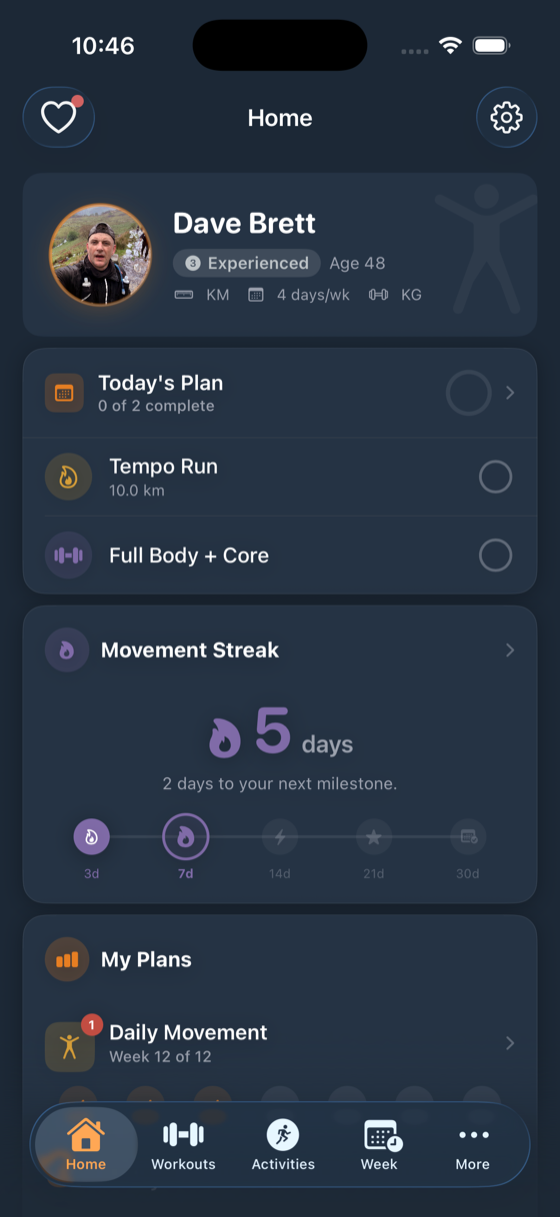
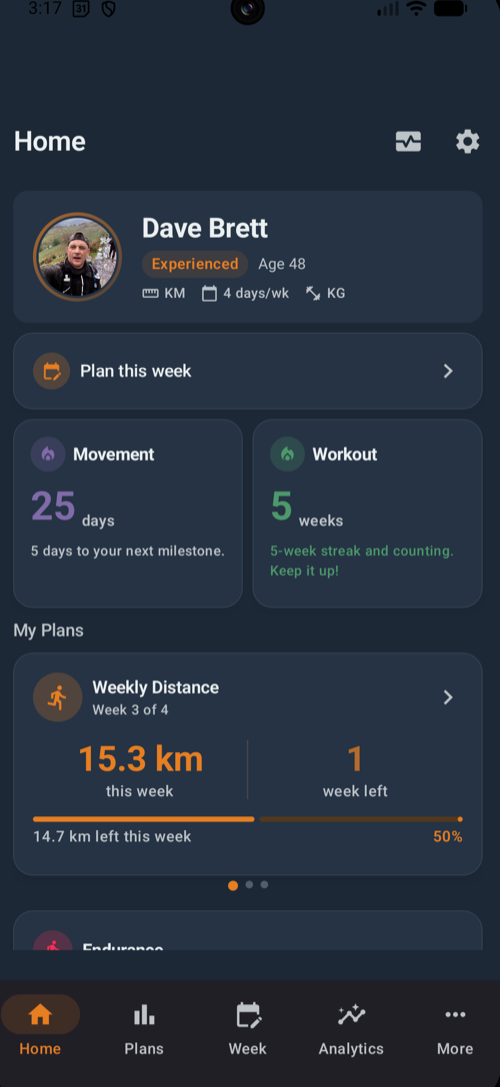
Home greets you by name with your active plans and a motivational quote, then adapts to your focus. Endurance and Hybrid athletes see Today's Plan (Pro), streaks, plan progress and activity cards - Hybrid adds strength cards too. Strength athletes get a "Workout Now" button that reads "Resume Workout" or "Start Today's Workout", plus a workout streak, strength summary, Muscle Use and Training Load. A "My Crew" card appears once you have training companions, and free users see teaser cards for Pro features. On iPhone, the toolbar adds a heart icon for Apple Health import - a red dot means new activities are waiting - and a gear for Settings.
Your first actions
Watch for the "Build Your Next Goal" nudge on Home: it takes you straight into plan creation - see Plans & week. Strength athletes usually start with a routine instead - see Strength. The free tier includes 3 active plans and 3 routines; Pro removes both limits. Pro users also get a "Plan Your Week" nudge with "Set Up This Week", "Pause for a Week" and "Don't Show This Again" options.